
Step-by-Step guide to how to install XAMPP on Windows.
Step 1: Download and Install XAMPP
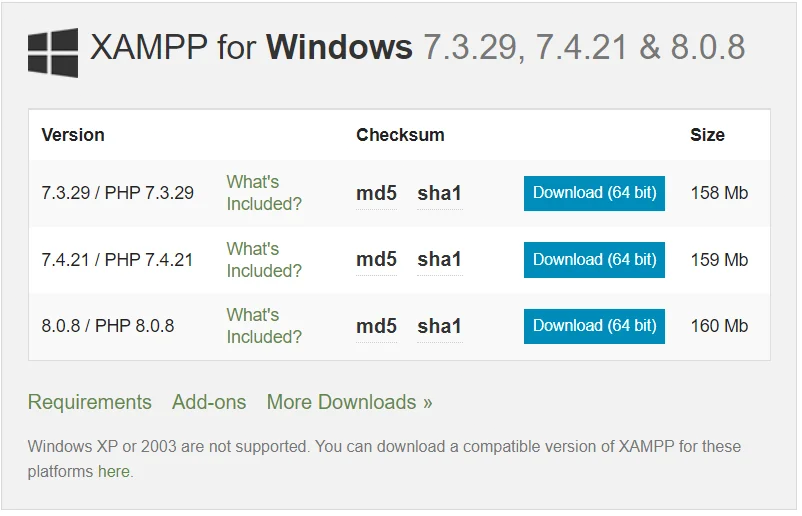
For downloading XAMPP, go to the link "Apache Friends". You will see different versions available for downloading.
Choose appropriate or Latest XAMPP. Click on Download button.
Step 2:- Setup and Install XAMPP
Double click on downloaded XAMPP exe file, you may come up with some warnings. Click on "Yes" button to start installation.

Step 3:- Select Components.

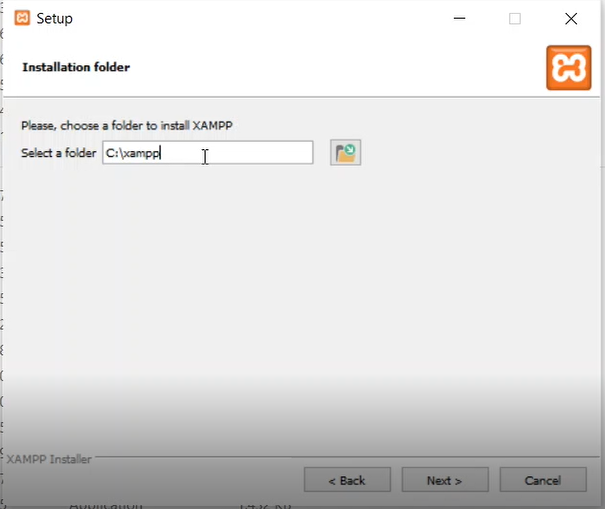
Step 4:- Select Installation Folder. Click on Next button 2-3 Times.
Step 5:- Run XAMPP
Click on Start button corresponding to Apache and MySQL.
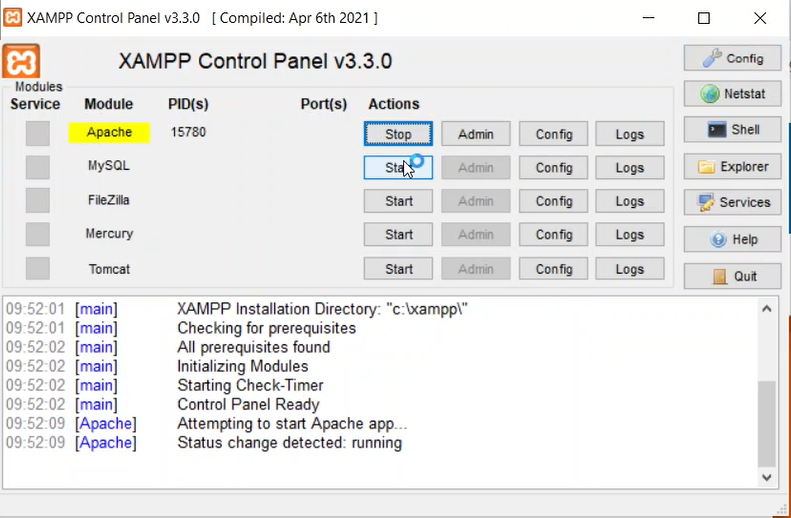
For confirmation, Goto Browser and type "localhost" and for mysql type "localhost/phpmyadmin".
For Video Tutorial : - https://youtu.be/CTtY_iaaCnQ